Library search
Find saved cards by address or registry number. The library holds the records saved on this Windows account.
Water service tie-card records
UtiliFolio is a Windows application for water departments that keep service tie cards. Enter the ties you measured, attach photos, adjust a schematic sketch, and save the card in the established front-and-back format, on one laptop, without an internet connection.
Windows preview 0.3.0 The installed app window is still titled “UtiliVault” while the product name changes. This site does not offer downloads.
Product tour
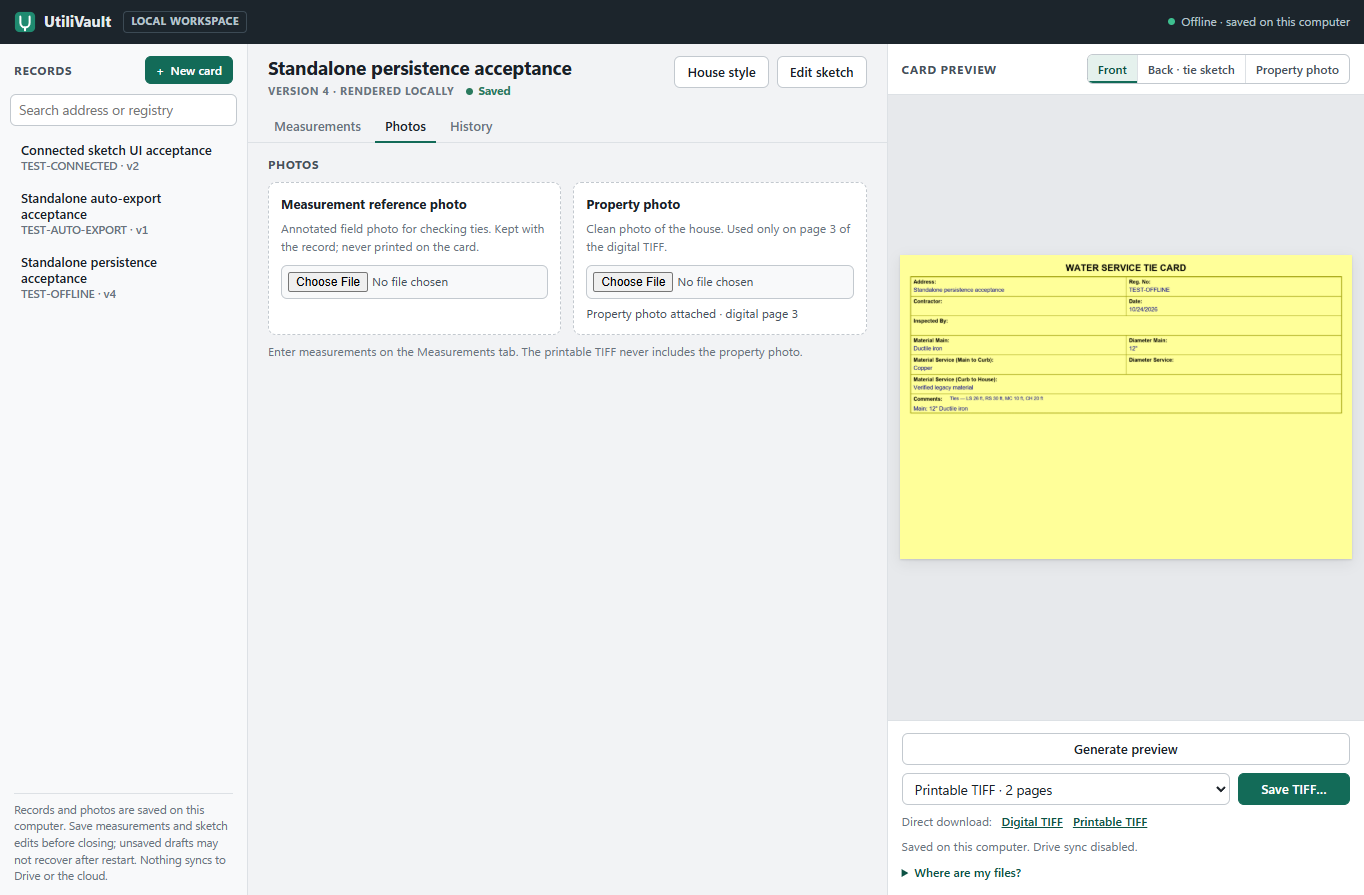
The library, the entry form and the card preview sit side by side, so the record and the drawing are checked together. This is the installed Windows preview 0.3.0, running offline.
Workflow
Most cards follow the same path. You can go back to any step, and each saved change is kept in the record’s history.
Search the local library by address or registry number, open an existing card, or start a new one.
Fill grouped fields for the record, tie measurements, main, service and notes. Choose standard sizes and materials from lists, or type a custom value.
Keep the annotated measurement photo with the record for checking, and attach the clean property photo used on the digital card.
Choose one of 23 schematic house-family presets, then adjust its geometry to suit the sketch.
Move the connected curb stop, house entry and main points, and place each named measurement label where it reads clearly.
Preview front and back, check the revision history, then save a printable or digital TIFF with Windows' own Save dialog.
Features
Everything in this section ships in Windows preview 0.3.0 and works offline.
Fields are grouped the way a tie card is read. Size and material fields offer standard choices, plus “Not recorded” and “Custom value” for anything the list does not cover, such as an old material description copied from the original card.
| Group | Fields |
|---|---|
| Record | Address, registry number, date, signed by (back of card), contractor, inspector |
| Tie measurements | Left tie, right tie, main to curb, curb to house |
| Main | Main size, main material, optional main line label override |
| Service | Service material main to curb, service material curb to house, service diameter |
| Reference and notes | Reference label, reference number, comments |
Every list also includes “Unknown”. Choosing “Custom value” opens a text box.
Find saved cards by address or registry number. The library holds the records saved on this Windows account.
The measurement reference photo stays with the record for checking and is never printed. The property photo becomes page 3 of the digital TIFF only.
You enter who signed the back of the card. It is never filled in from the inspector field. The record date fills the existing date line, and the main label is written from main size and material unless you type your own.
House presets
These previews come straight from the app’s house renderer. They are based on house families common in Framingham, Massachusetts, including Campanelli-type L-ranches, Capes and Colonials.
Schematic, not surveyed. A preset is an architectural reference symbol. It is not a model of a particular address or a measured property survey. Its geometry can be edited on each card.
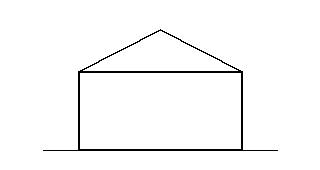
Established simple house symbol.
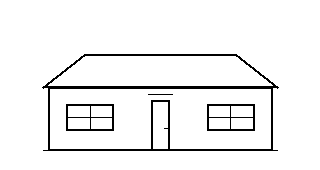
Low single-story frontage and broad roof.
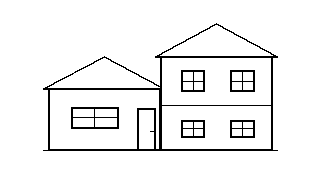
Offset roof heights and staggered window rows.
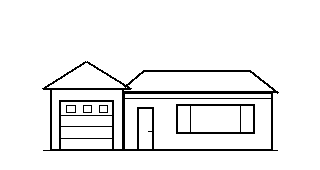
L-shaped ranch family with a projecting left garage, low roof, and picture window.
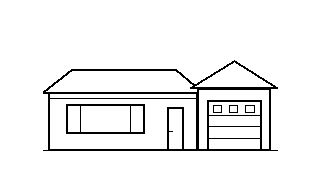
L-shaped ranch family with a projecting right garage, low roof, and picture window.
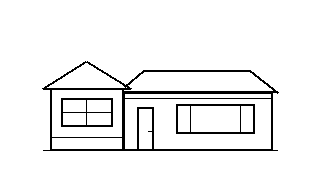
General altered-ranch variant with windows replacing the left garage opening.
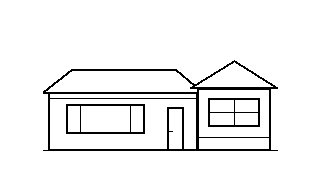
General altered-ranch variant with windows replacing the right garage opening.
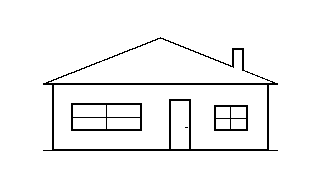
Single-story frontage with an end-gable roof and broad living-room window.
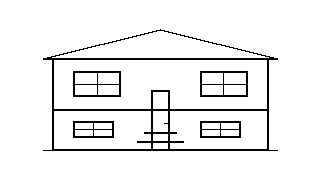
General variant with upper living windows, lower-level windows, and a split-entry stair.
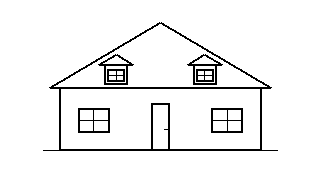
Steep roof with two dormers and a centered entry.
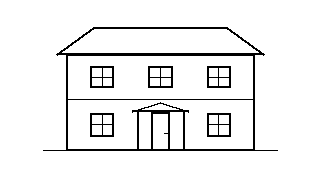
Two-story frontage with a centered entry and porch.
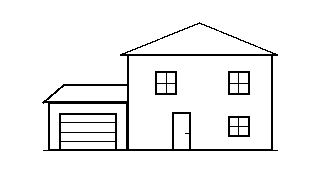
Two-story frontage with an attached left garage.
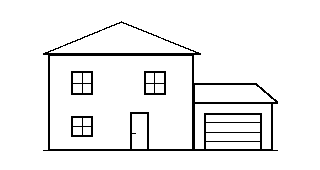
Two-story frontage with an attached right garage.
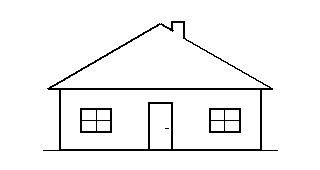
Compact steep-roof Cape with a centered door and no dormers.
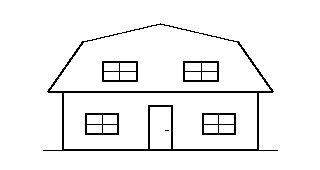
Two-slope gambrel roof, broad eaves, and a centered entry.
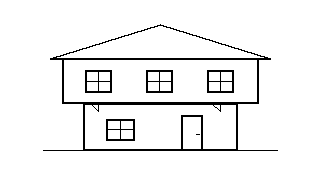
General Colonial variant with an overhanging upper story and supporting brackets.
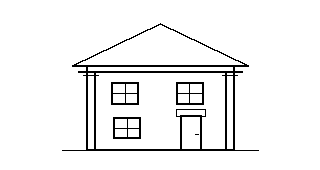
Front-facing pediment, corner pilasters, and a side entry.
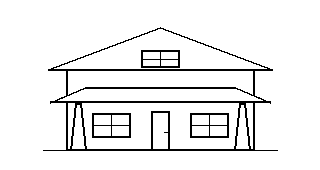
Low broad gable with a full-width porch and tapered square posts.
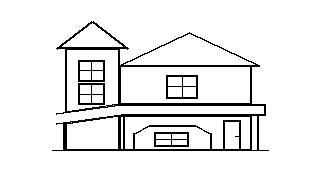
Asymmetric tower, steep gable, projecting bay, and wraparound-style porch.
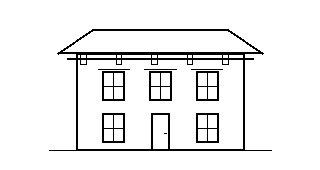
Low hipped roof, paired cornice brackets, and tall narrow windows.
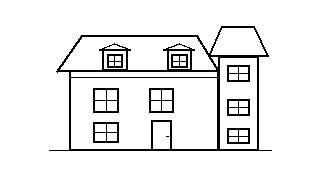
Mansard roof with dormer windows, corner turret, and a recessed entry.
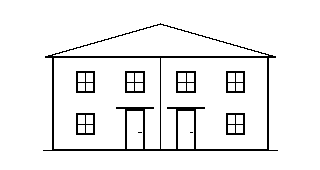
Paired entries and mirrored frontages.
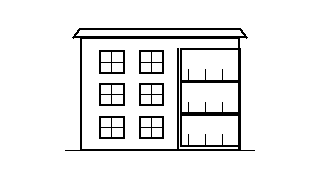
General multifamily variant with three window rows and stacked front porches.
Sketch editing
The curb stop, house entry and main connection are linked. Move one and its attached lines follow, so the sketch stays connected.
Each label is named, so two identical distances can be told apart. Pick a label from the Move measurement text list or drag it, then use arrow keys or the movement buttons to fine-tune. Undo steps back; Reset returns a label to its default place.
Placement only. Dragging points or labels changes where things are drawn. It does not measure or recalculate lengths. The numbers on the card are always the ones you entered.
Try it here
A small, simulated version of the label controls, using the fictional values from card A below.
Simulated example. Runs only in this page. It does not open, save, render or upload records, and refreshing the page resets it.
Choose a label, then use the direction buttons. With a mouse, pen or touch you can also drag a label on the sketch.
| Measurement | Recorded value | Text offset |
|---|---|---|
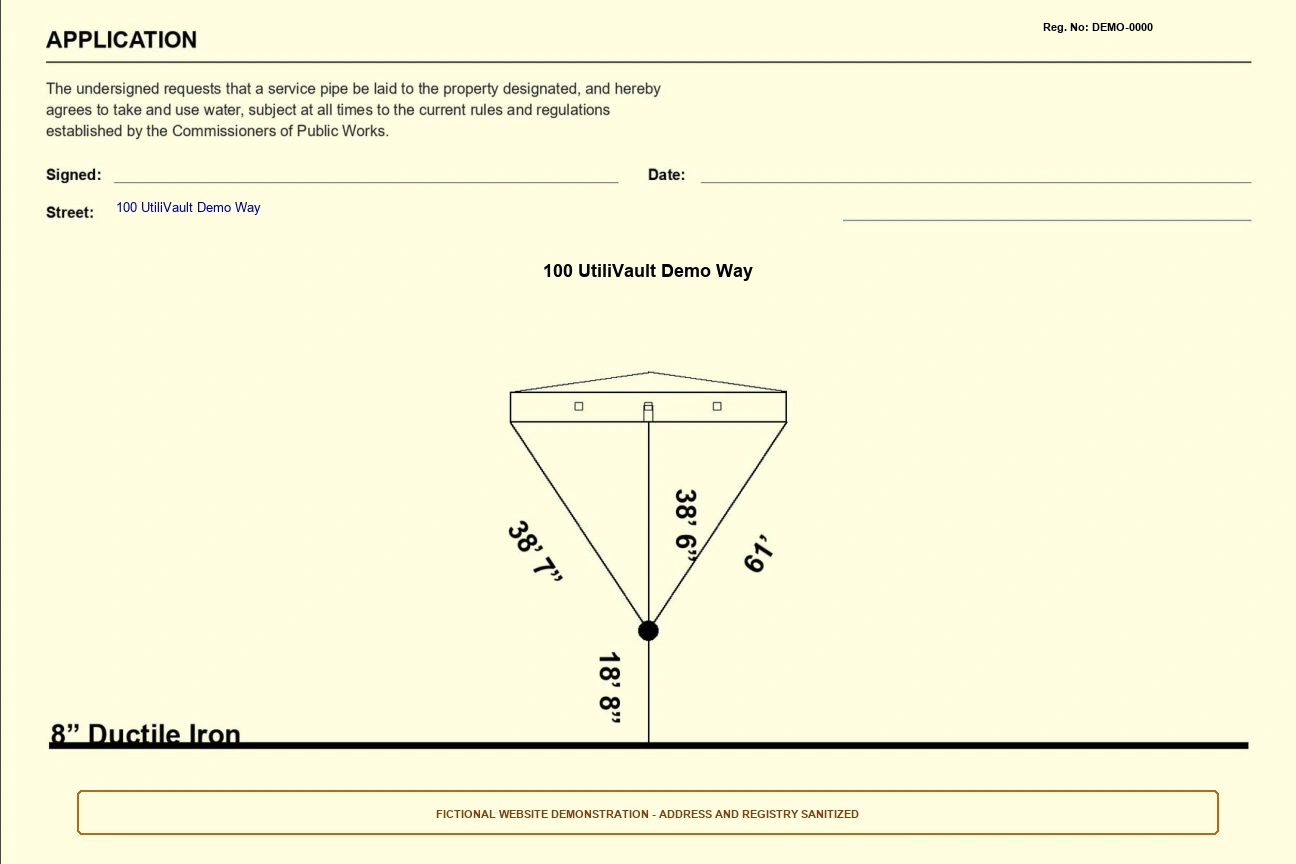
| Left tie | 38′ 7″ | original position |
| Right tie | 61′ | original position |
| Curb to house | 38′ 6″ | original position |
| Main to curb | 18′ 8″ | original position |
No labels moved yet. Recorded values never change when text moves, in this demonstration or in the app.
Outputs
Preview the front, the back tie sketch and the property photo before saving. Each saved change is kept in the record’s history, and any earlier version can be restored as a new version.
2 pages
Front record and back tie sketch. No property photo. LZW compressed at 300 DPI.
3 pages
Front, back, and the clean property photo as page 3. LZW compressed at 300 DPI.
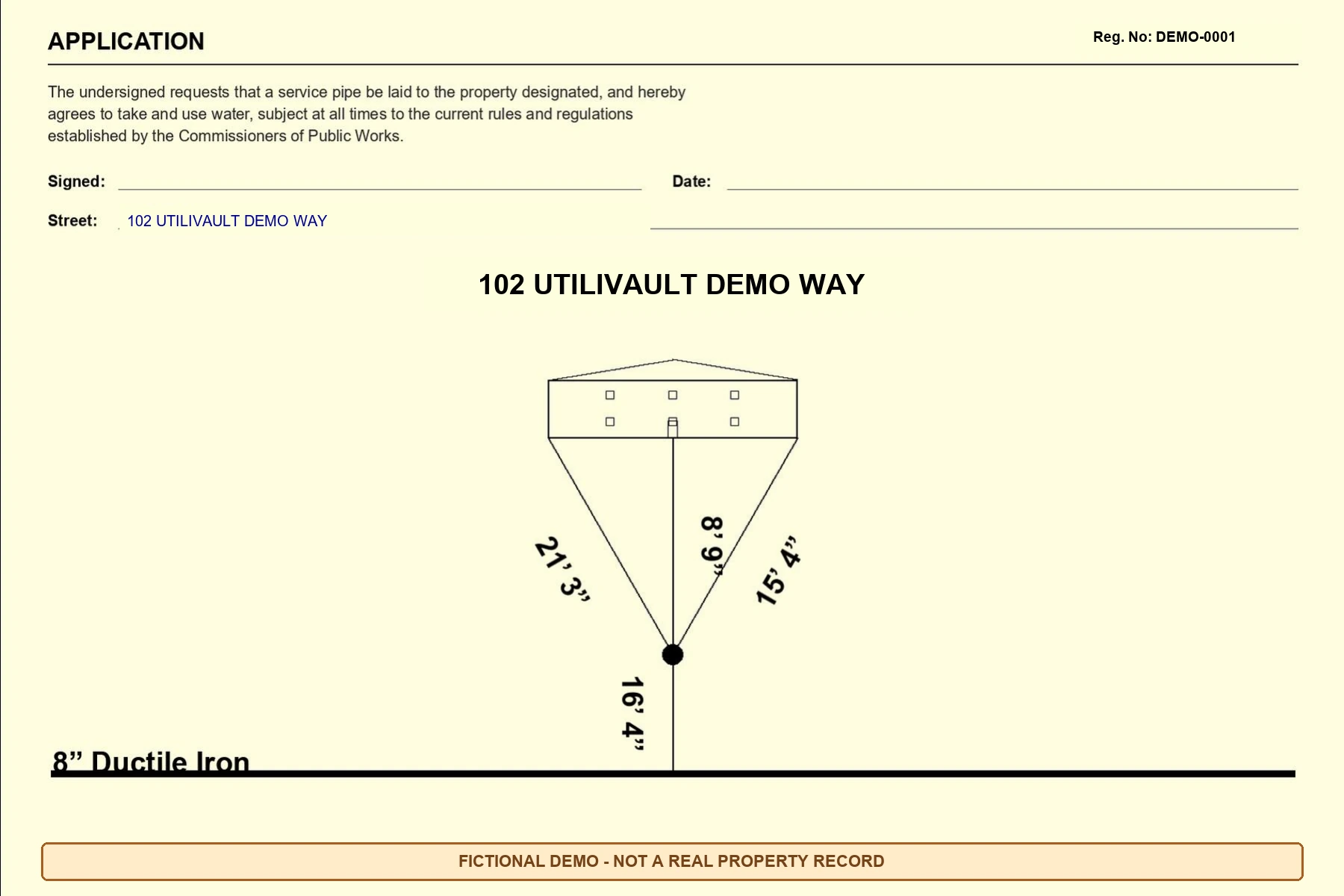
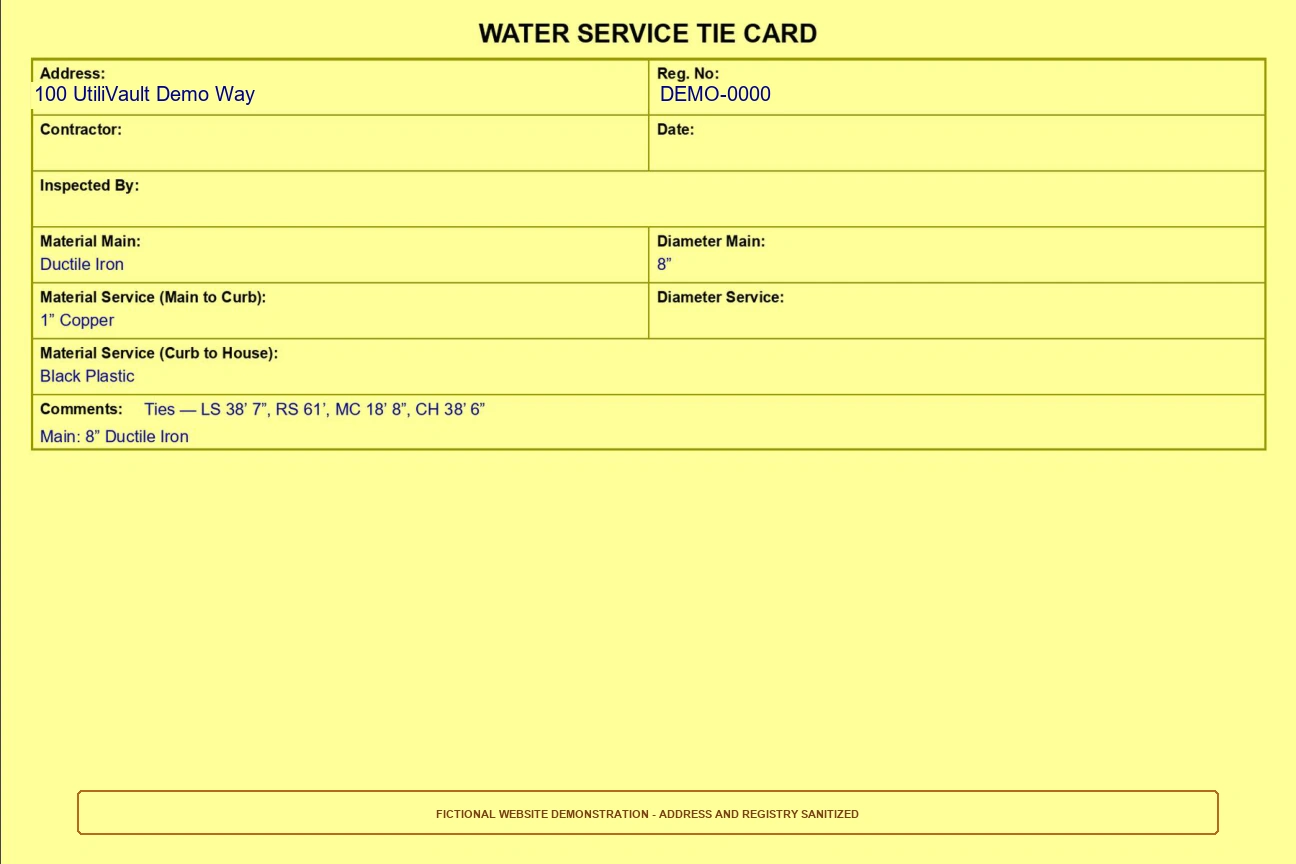
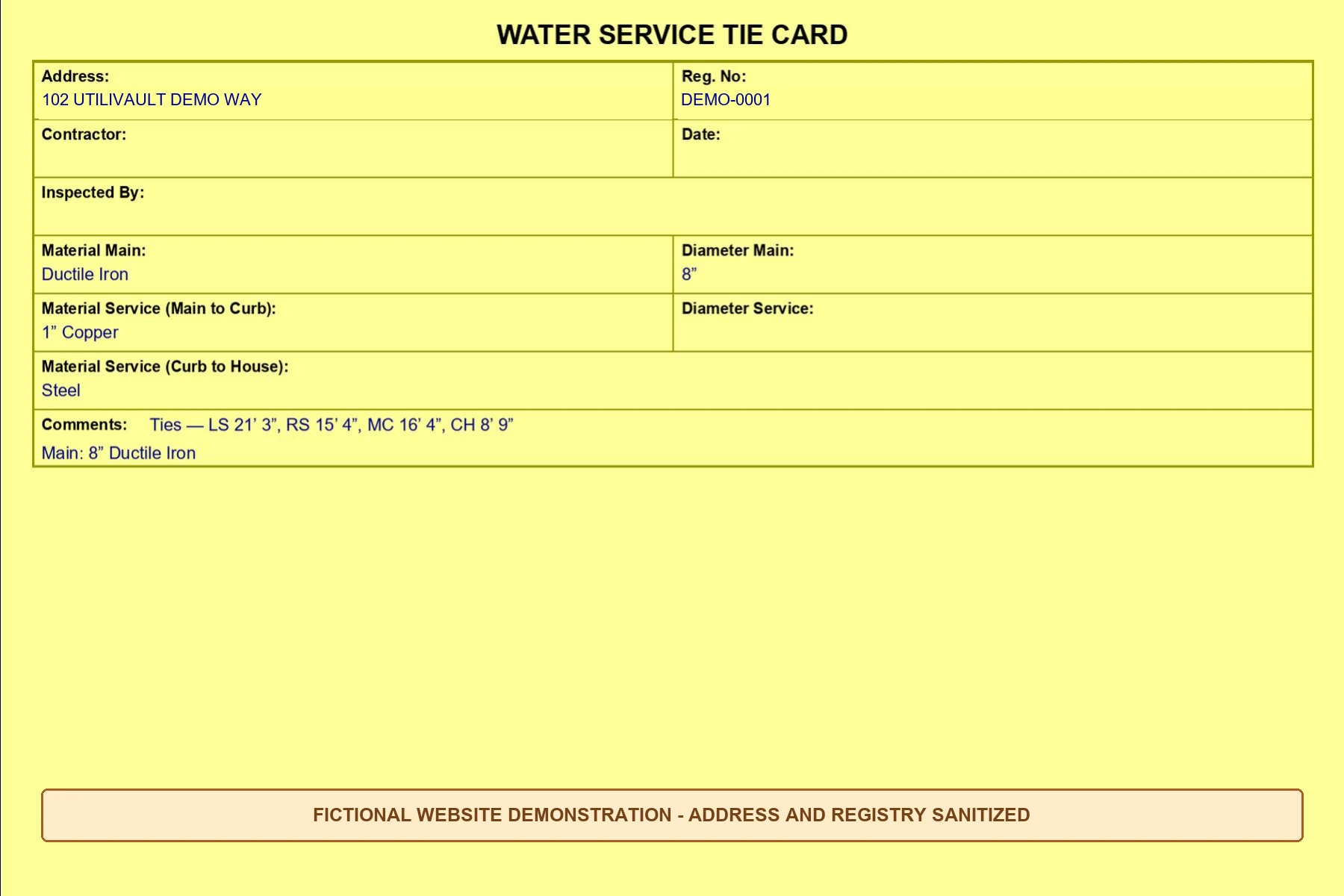
Saved with the Windows Save dialog (Downloads by default). The examples below are web copies of real renderer output with fictional addresses; their original text is unchanged.
First use
A short checklist for a department trying the preview. The installer is supplied during a pilot, not from this site.
The preview is an unsigned, per-user Windows app. Confirm your workplace allows it before the pilot starts; the FAQ below has the details.
Run the per-user installer, or extract the whole ZIP and keep its files together. Nothing else to install: the backend is included.
Use made-up values first. Enter measurements, attach both photos, pick a house style, generate the preview and check every page.
Fields and sketch edits are saved separately. Save the sketch, generate the preview again, then use Save TIFF.
UtiliVault › Storage details shows where records are kept; Open records folder opens it. Close the app and copy the whole folder, and do it again before every update.
Status
We would rather you know exactly what exists than be surprised during a pilot.
| Capability | Status | Notes |
|---|---|---|
| Offline Windows app with included local backend | Shipped in the Windows preview | Windows preview 0.3.0. No internet, home PC, Python, AI model or Tailscale needed for local use. |
| Library search by address or registry number | Shipped in the Windows preview | Searches records saved on this Windows account. |
| Grouped measurement entry with standard dropdowns and custom values | Shipped in the Windows preview | Sizes and materials listed above, plus “Not recorded” and “Custom value”. |
| Separate measurement photo and property photo | Shipped in the Windows preview | Measurement photo stays with the record; property photo is page 3 of the digital TIFF. |
| 23 schematic Framingham-area house-family presets | Shipped in the Windows preview | Editable geometry. Schematic references, not property surveys. |
| Connected curb stop, house entry and main points | Shipped in the Windows preview | Attached lines follow when a point moves. |
| Named measurement labels: drag, keyboard nudge, undo, reset | Shipped in the Windows preview | Moving text never changes recorded lengths. |
| Explicit signer and date; automatic main label | Shipped in the Windows preview | Main label comes from size and material unless you type an override. |
| Front/back preview, revision history and restore | Shipped in the Windows preview | Restoring saves the earlier version as a new version. |
| Native Save dialog: printable and digital TIFF | Shipped in the Windows preview | 2-page printable and 3-page digital, LZW compressed, 300 DPI. |
| Local records folder, backups guidance, Storage details menu | Shipped in the Windows preview | Records live under the app's per-user data folder. |
| Online phone workspace | Separate online tool | Needs a running host computer and a connection. Uses its own records. |
| Automatic phone, laptop or Google Drive sync | Planned, not available | Not available. Libraries stay separate. |
| Offline phone submission | Planned, not available | Not available yet. |
| CADCraft and OpenForma integrations | Explored, not shipped | Feasibility work only. Not part of any release. |
Questions
Yes. Once installed, the Windows app creates, previews and saves cards with no internet connection. It does not need a home PC, Python, an AI model or Tailscale, because its backend is included. Only getting the installer requires contact with us, through a pilot.
No. A phone-friendly workspace exists as a separate online tool. It needs a running host computer and a network connection, and it keeps its own records. Nothing syncs automatically between the phone workspace, the laptop app and Google Drive. Offline phone submission is planned, not available.
In a records folder inside the app’s per-user data folder, so each Windows account has its own library. Storage details shows the path. Saved TIFF files are separate: they go wherever you point the Save dialog, Downloads by default.
Choose UtiliVault › Restart local workspace. Save field and sketch changes before closing, because unsaved drafts may not survive a restart. Never delete the records folder to troubleshoot; updates keep it.
Only roughly. The 23 presets are schematic symbols of common house families. Choose the closest one and adjust its geometry so the sketch reads clearly. The tie distances on the card always come from the numbers you enter, never from the drawing.
Two, in separate slots. The measurement reference photo is your annotated field photo; it stays with the record for checking and is never printed. The property photo is a clean photo of the house and becomes page 3 of the digital TIFF. The printable TIFF does not need it.
Print the 2-page printable TIFF: front record and back tie sketch, no photo. The 3-page digital TIFF adds the property photo as page 3. Both are 300 DPI with LZW compression. If a sketch change is missing from the file, save the sketch and generate the preview again before saving.
The product is being renamed to UtiliFolio. Preview 0.3.0 still shows “UtiliVault” in its window title and in About UtiliVault, which also show the exact version that is running. Before updating, save your work and quit every open copy of the app.
Often, yes. The preview installs per user and is not code-signed, so Windows or workplace application policies may block the installer or the ZIP copy. Ask your administrator to review it. Neither package is designed to get around those policies, and you should not try to.
The preview is available through a pilot; this site does not offer downloads. There are no published plans or prices yet. Get in touch and tell us how your department keeps tie cards today.
Pilots
UtiliFolio is in a preview stage. There are no published plans or prices. If your department keeps tie cards and would like to try the workflow on sample records, get in touch to discuss a pilot.
It helps to mention how your cards are kept today (paper, scans or both), roughly how many there are, and who would use the laptop.